Plan with the sky3 min read4 steps
Point your phone at the sky
Explore and Camera modes: hold the phone up and the map follows, over the live camera.
Step 1/4
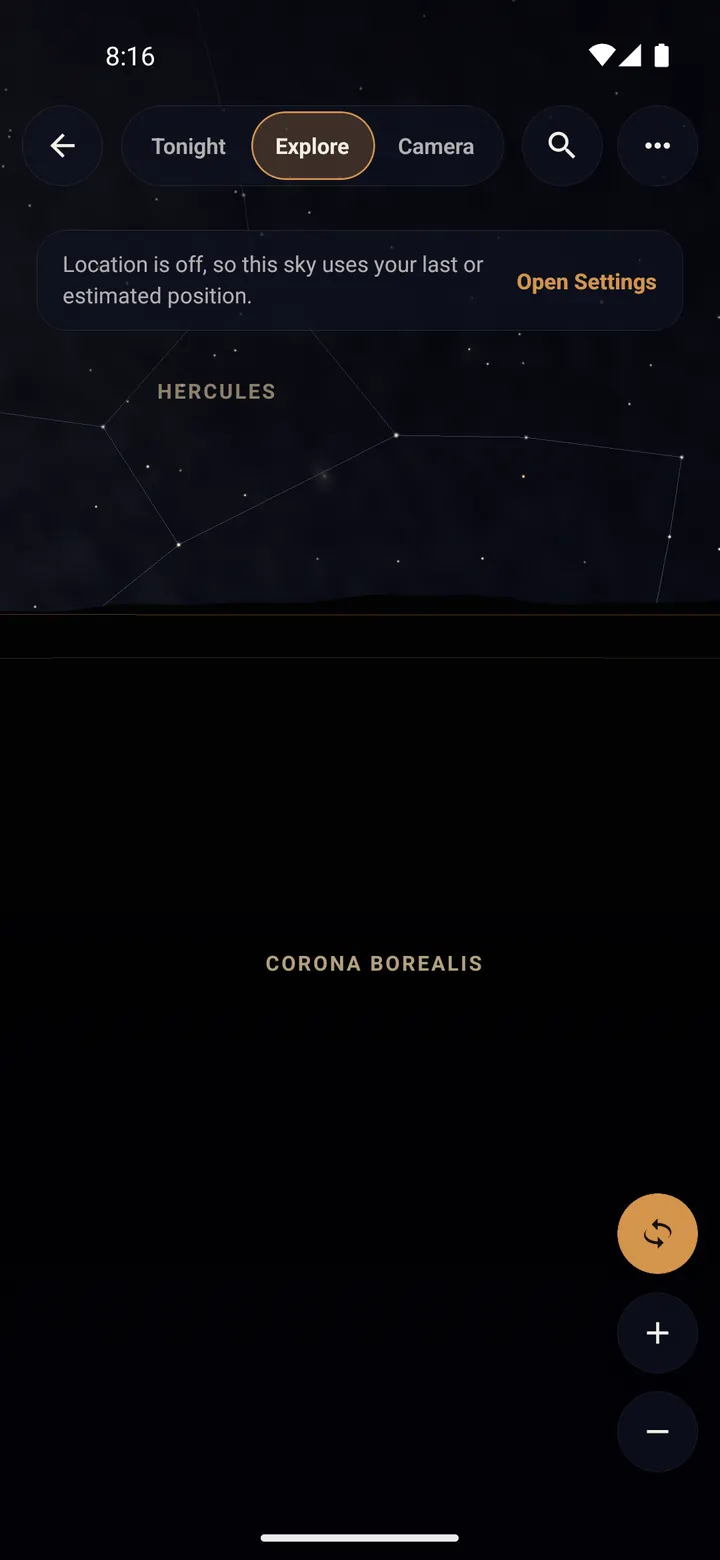
Explore: the sky follows your phone
At the top of Tonight's Sky, tap "Explore". Hold the phone up: as you move it, the map turns with you, so what is on screen is what is in front of you.
Constellation names and lines are shown so you can learn the sky.
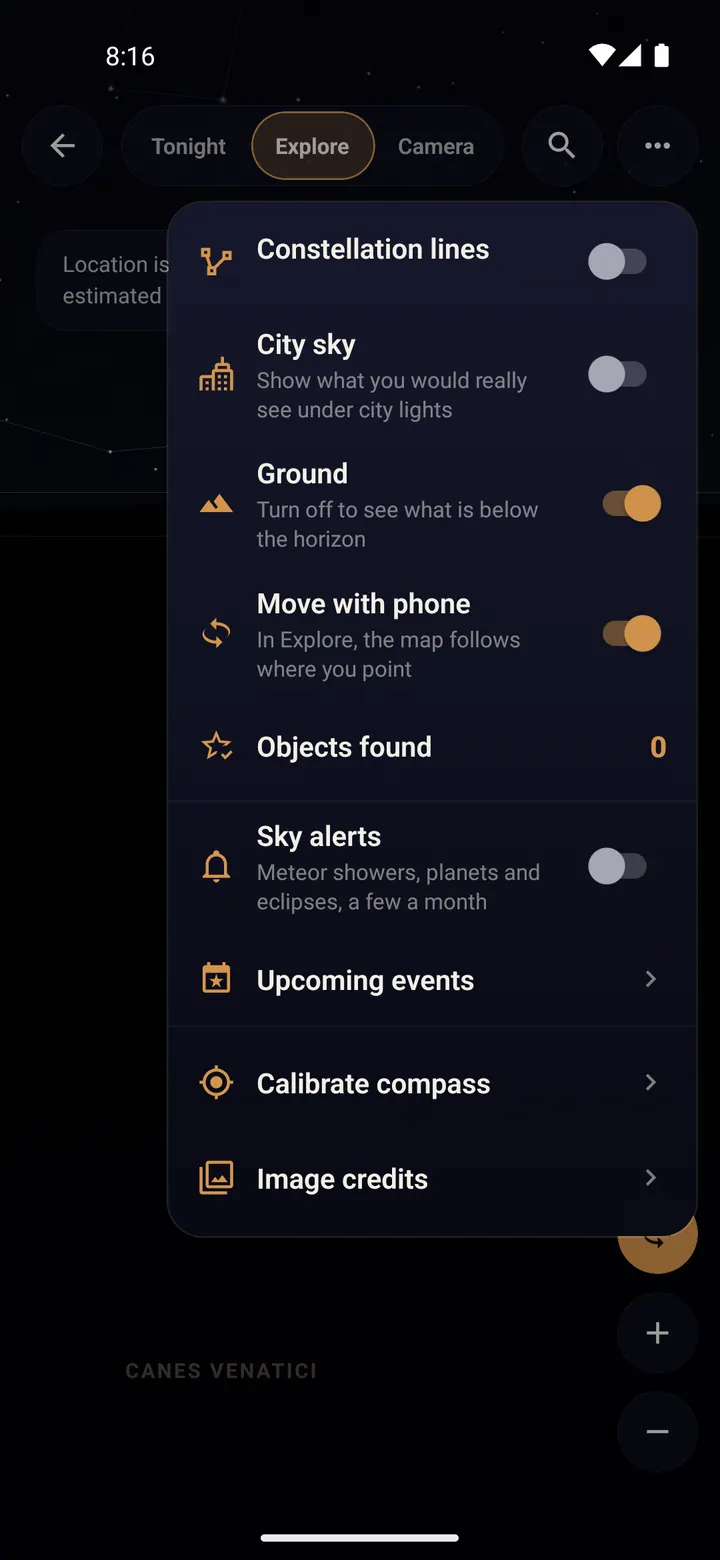
To drag the sky with your finger instead, turn off "Move with phone" in the menu (three dots) or tap the gyro button on the side.
Step 2/4
Camera: the map over the real sky
Tap "Camera" to see the sky labels over your live camera. Great for framing a shot: you see where the Milky Way and the pole star will be before you start.
Trailium asks for the camera only at this moment. If you say no, you still get the sky on a dark background.
Step 3/4
Point phone to a target
On any card, tap "Point phone". An arrow guides you; follow it until the object is in the middle. Then it counts as found.
Step 4/4
If the sky looks off
Phone compasses drift, especially near metal or cars. Open the menu (three dots) and tap "Calibrate compass", then line up a bright object you recognise, like the Moon.
Done? Try next
Plan with the sky
Find planets, stars and galaxies with Tonight's Sky
ReadPlan with the sky
Never miss a meteor shower
ReadStart here
Your first star trails tonight
ReadSomething here does not match your screen? Tell us and we will fix the guide.