Tips and fixes4 min read8 steps
Tips and troubleshooting
Sharper trails, darker skies, longer sessions, and what to do when something goes wrong.
Step 1/8
Keep the phone perfectly still
A tripod on solid ground is best. Any movement during a session shows up as broken or doubled trails.
Turn on airplane mode so calls and vibrations cannot shake the phone.
Step 2/8
Go somewhere dark
City lights wash out faint stars. Even 20 minutes outside town makes a big difference.
Check the Moon in Tonight's Sky. A bright Moon lights up the sky like light pollution; shoot when it is down or thin.
Step 3/8
Battery and storage
Long sessions use a lot of battery. Plug the phone into a power bank.
Make sure you have free space. Every finished photo is saved as you go.
Step 4/8
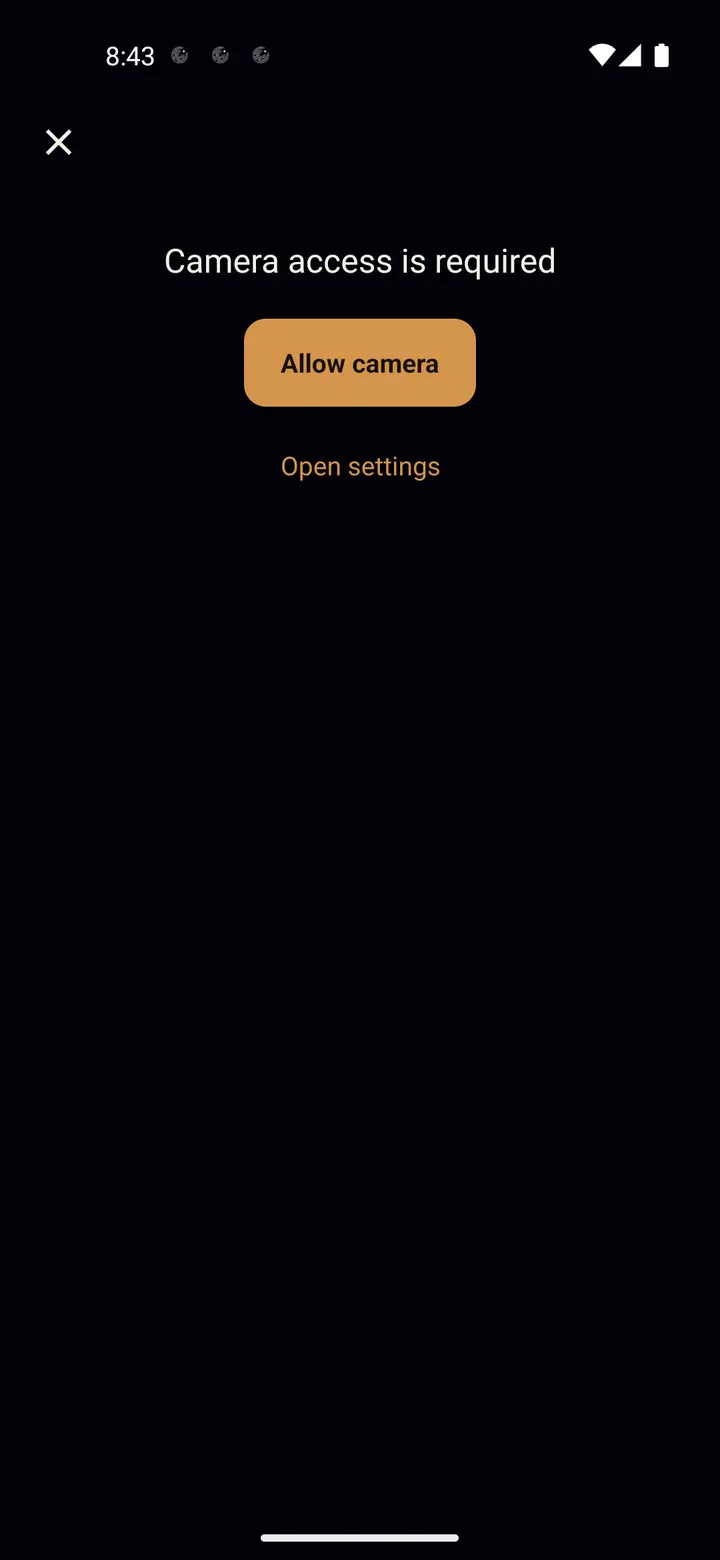
"Camera access is required"
Tap "Allow camera". If you said no before, tap "Open settings", turn on Camera for Trailium, and come back.
Step 5/8
"Camera is busy"
Another app is using the camera. Close other camera apps (or end a video call) and open Capture again.
Step 6/8
My single photos look dark
That is normal. Each frame of the night sky is dark; stacking adds the light of every frame together, so the final result is much brighter.
Step 7/8
Trails look broken or doubled
The phone moved during the session, or the photos were not all taken from the same spot. Use a tripod, and check "Stable" before you start.
Step 8/8
Still stuck?
Open Help in the app (the question mark on the home screen) and tap "Send feedback". It goes straight to the developer, who reads every message.
Done? Try next
Start here
Your first star trails tonight
ReadShoot at night
Night mode in detail
ReadCreate from your photos
Turn photos you already have into star trails
ReadSomething here does not match your screen? Tell us and we will fix the guide.